How to Set Up PriceIt’s Mobile App on Your Phone

Android app setup instructions for the PriceIt Phone App
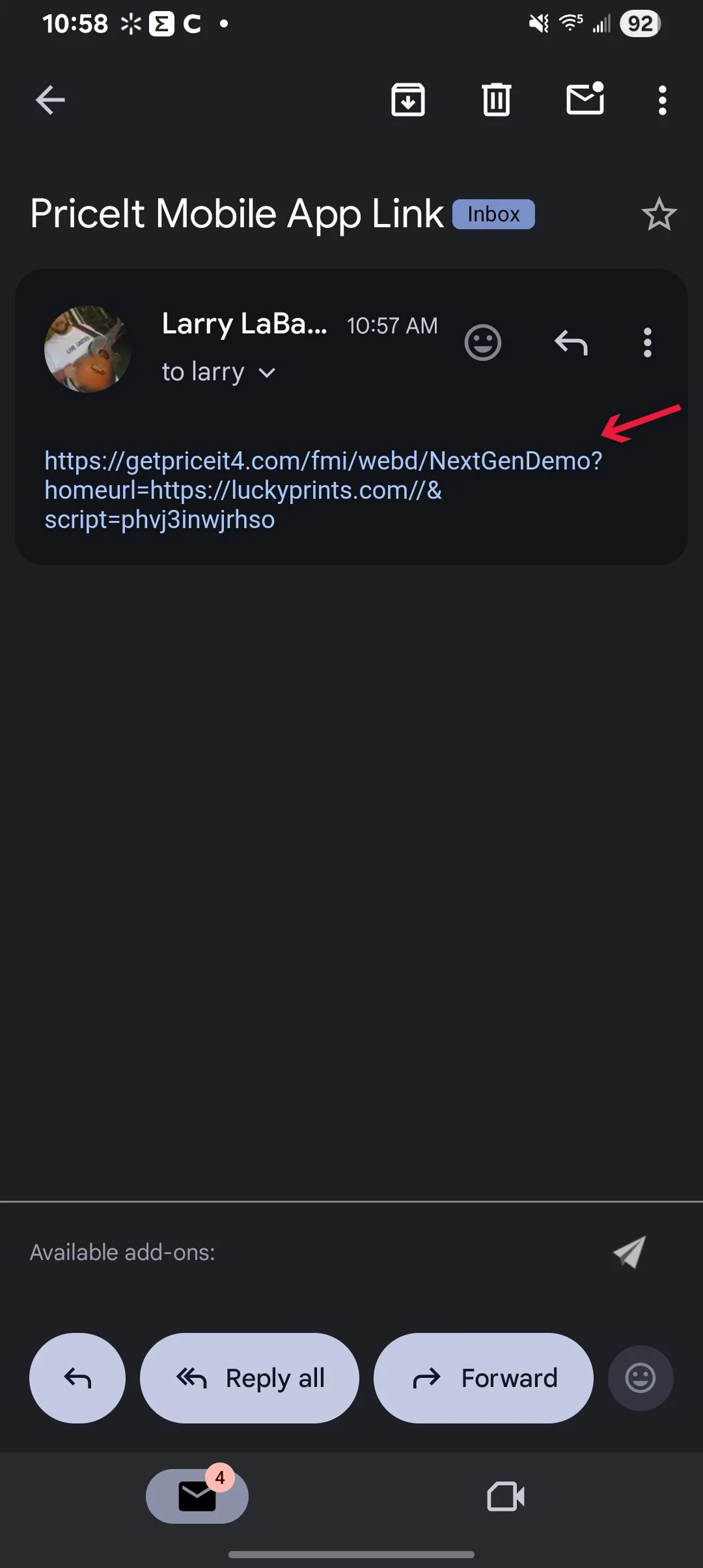
Android phone email screen showing how to open the PriceIt Phone App access link from an email message
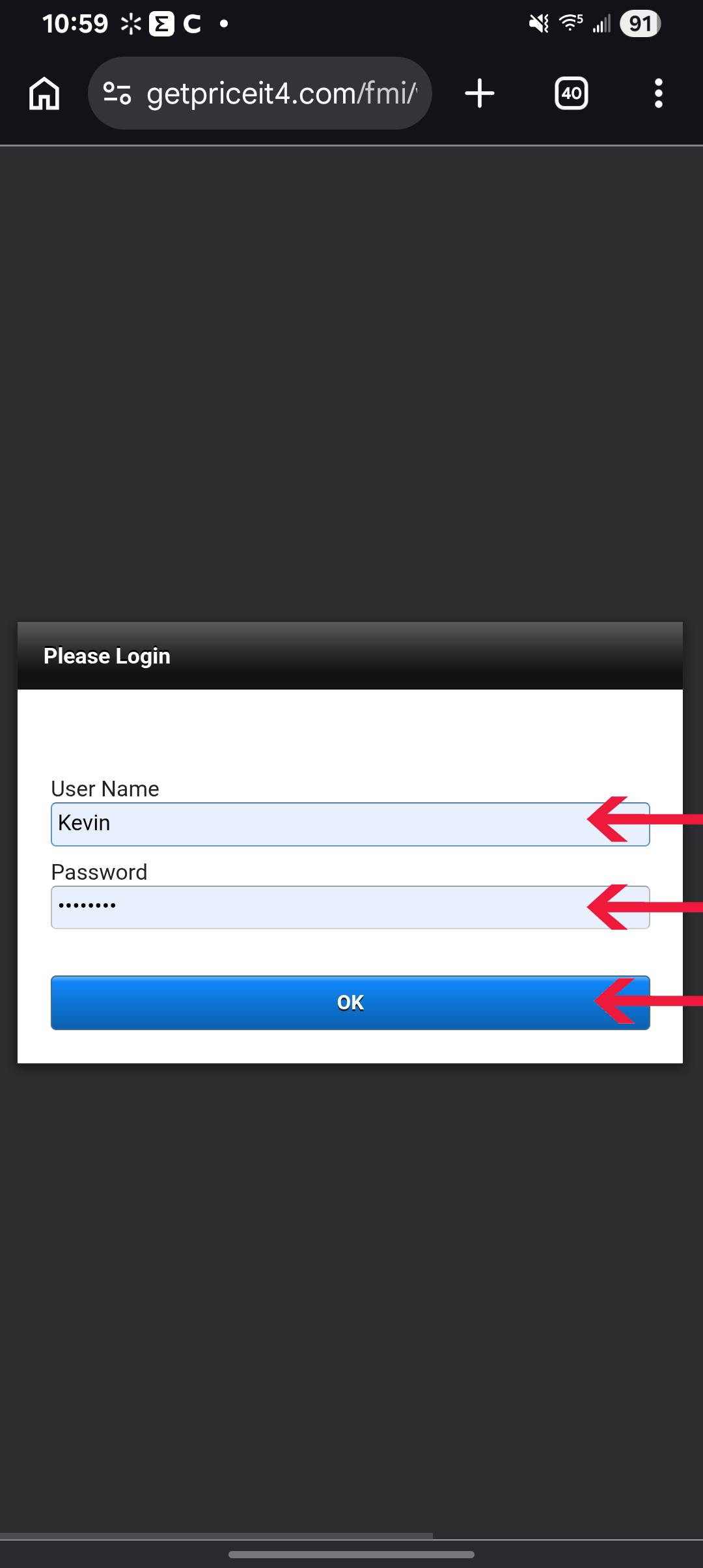
Apple iPhone OS screen showing log in screen to the PriceIt Phone App
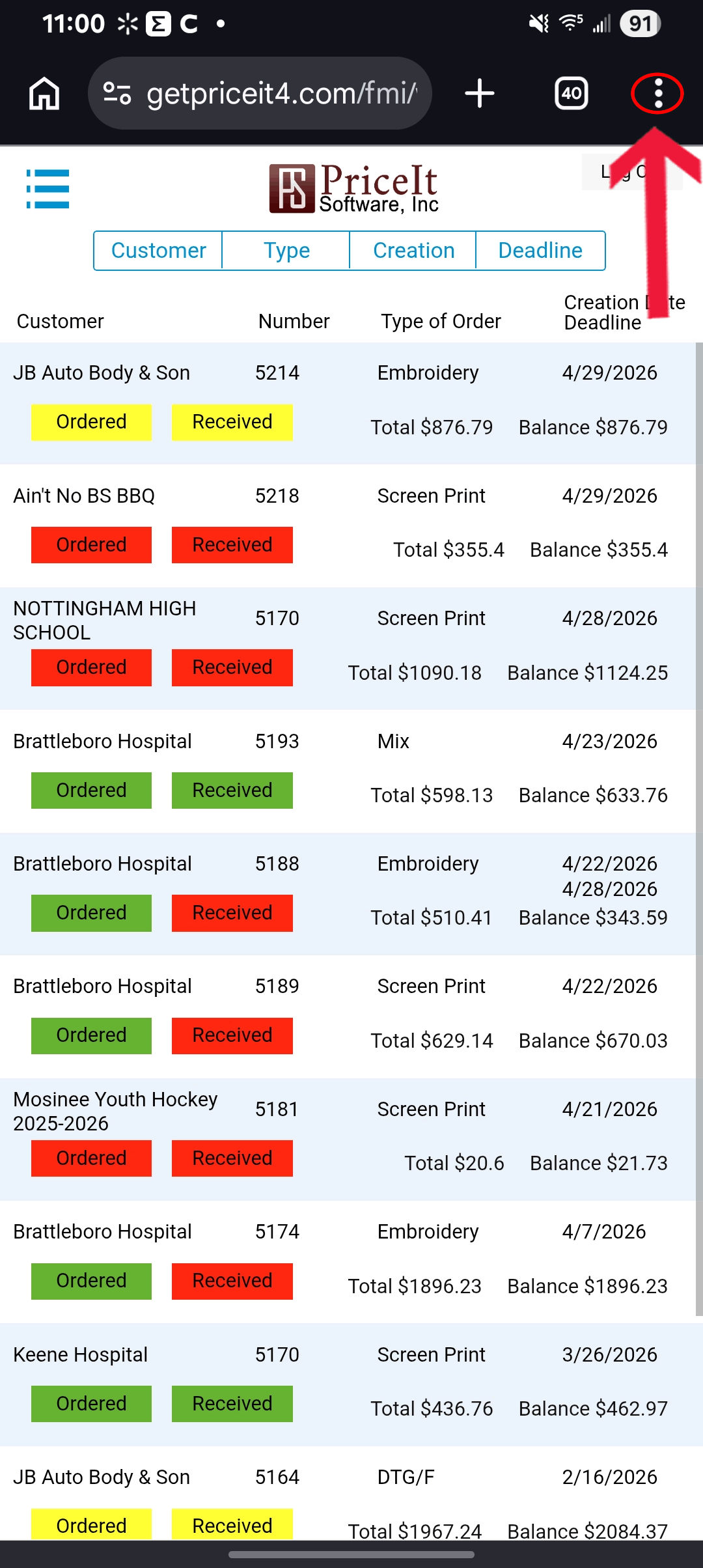
Android phone app PriceIt Software showing a list of customer screen print, embroidery, and DTG / DTF orders with statuses in color-coded labels
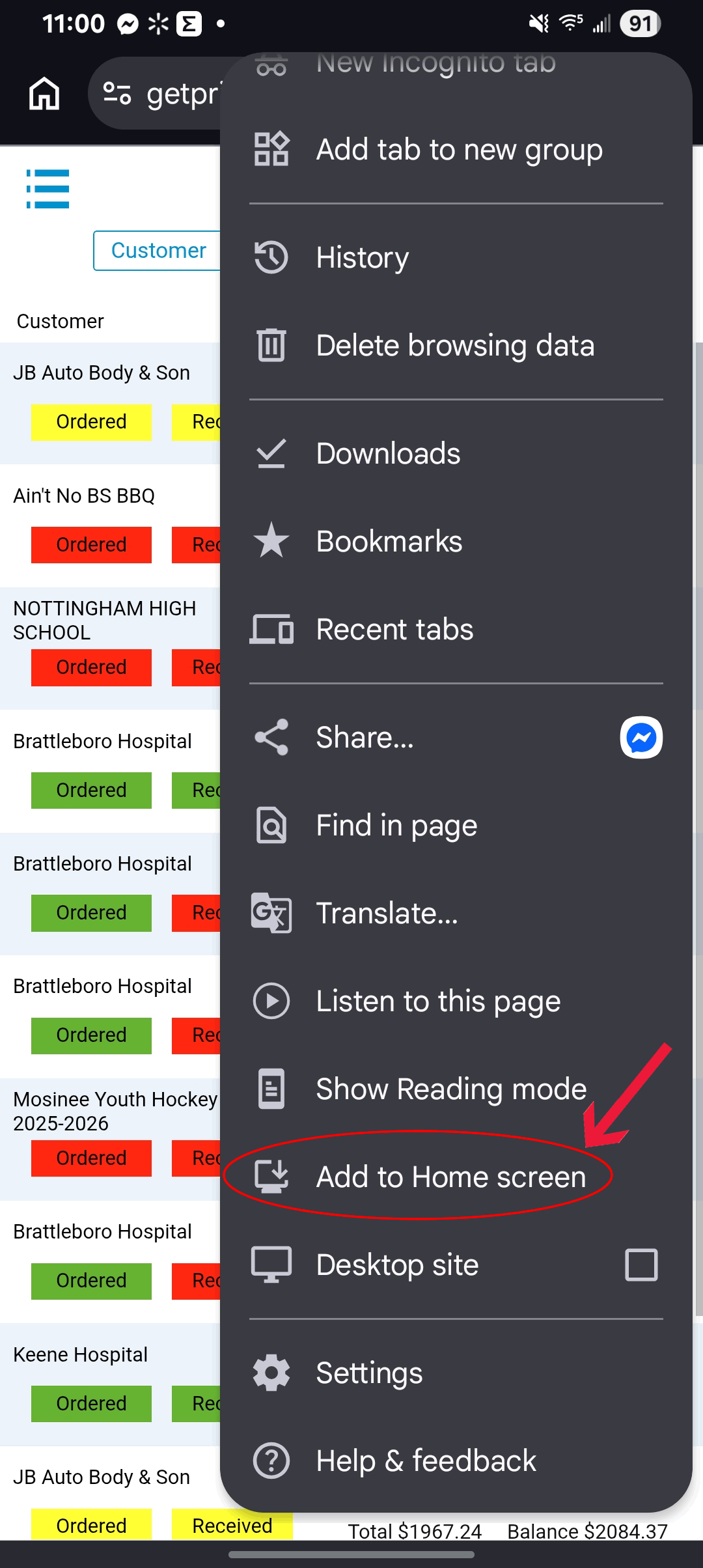
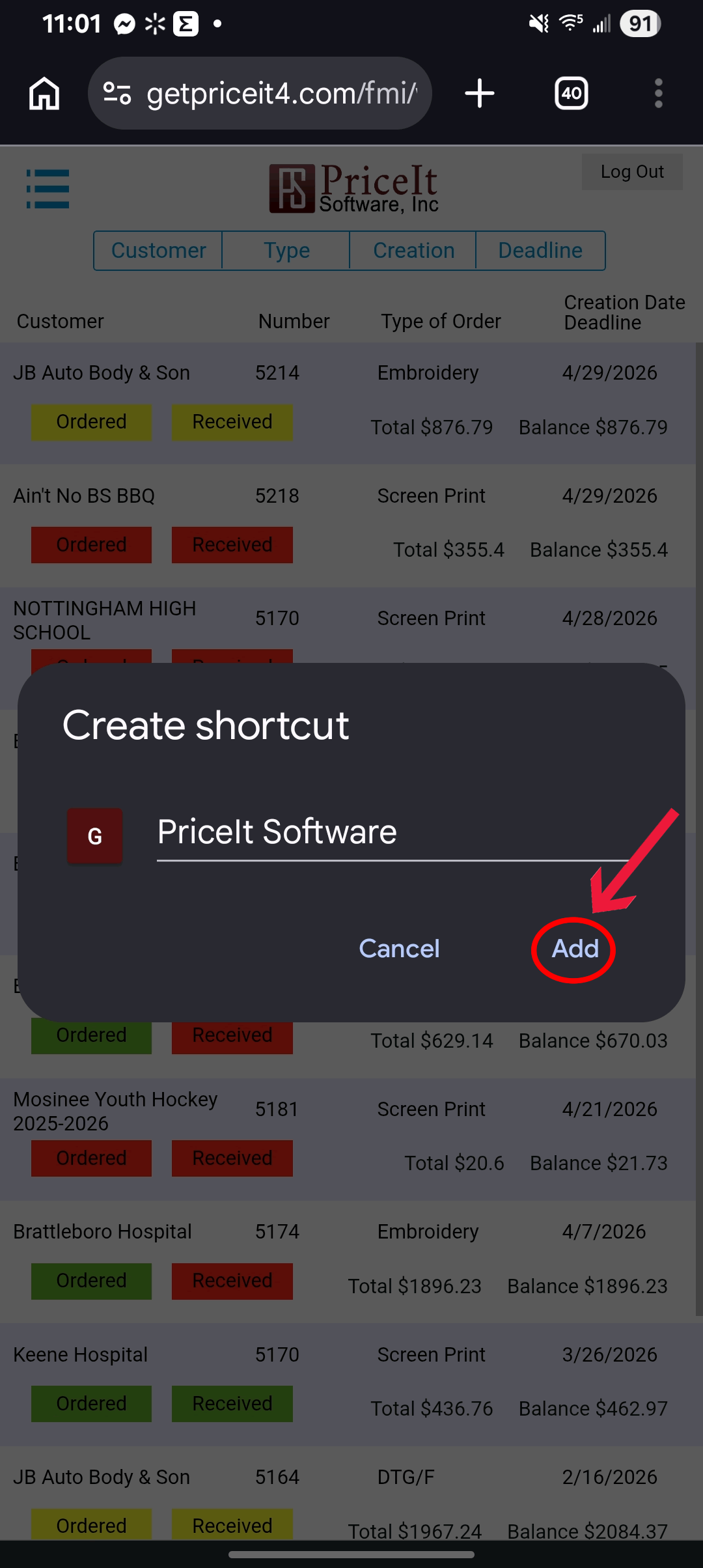
Android phone app PriceIt Software showing how to add the app to the homescreen
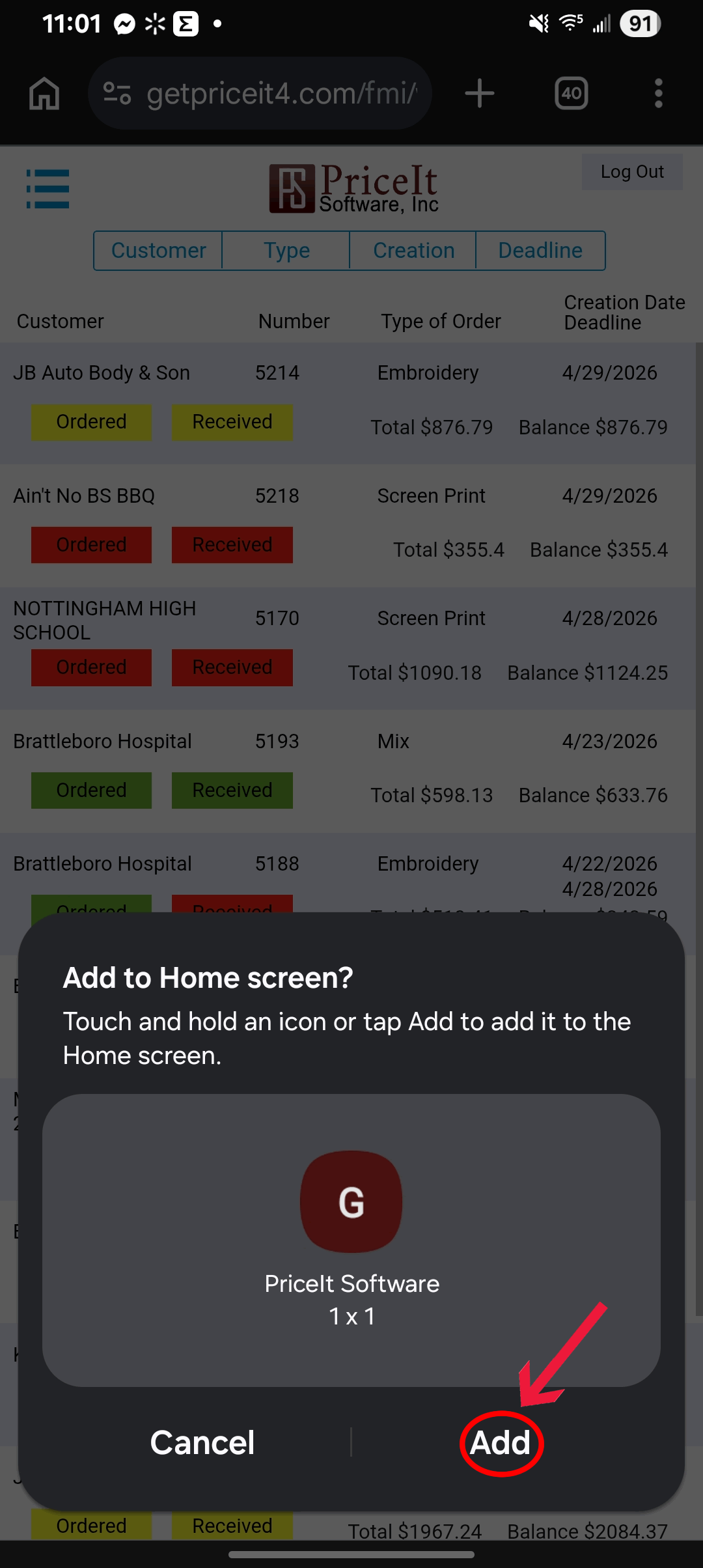
Android phone app PriceIt Software showing how to add the app to the homescreen result
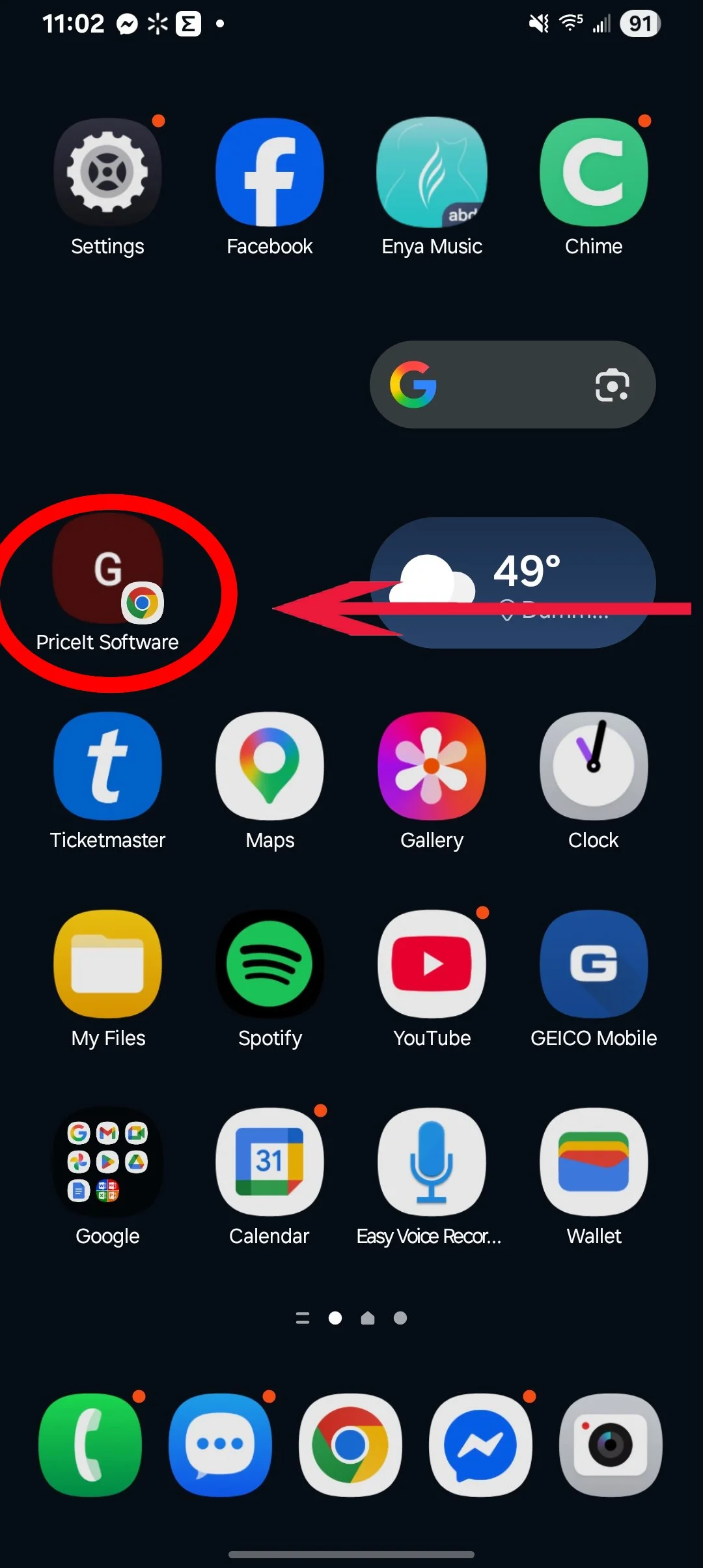
Android phone screen showing PriceIt Software phone app added to homescreen

Setting up PriceIt on your phone is super-easy. Just follow the steps below. ↓

alt=""

From PriceIt’s Order Entry Screen:

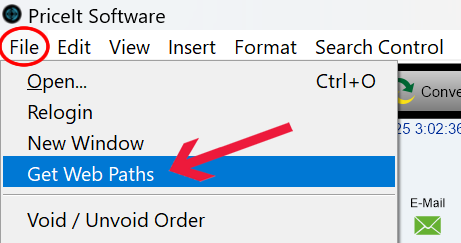
FileMaker menu showing how to select Get Web Paths from the File menu during PriceIt Phone App setup

Click FILE from the Menu Bar and then select GET WEB PATHS
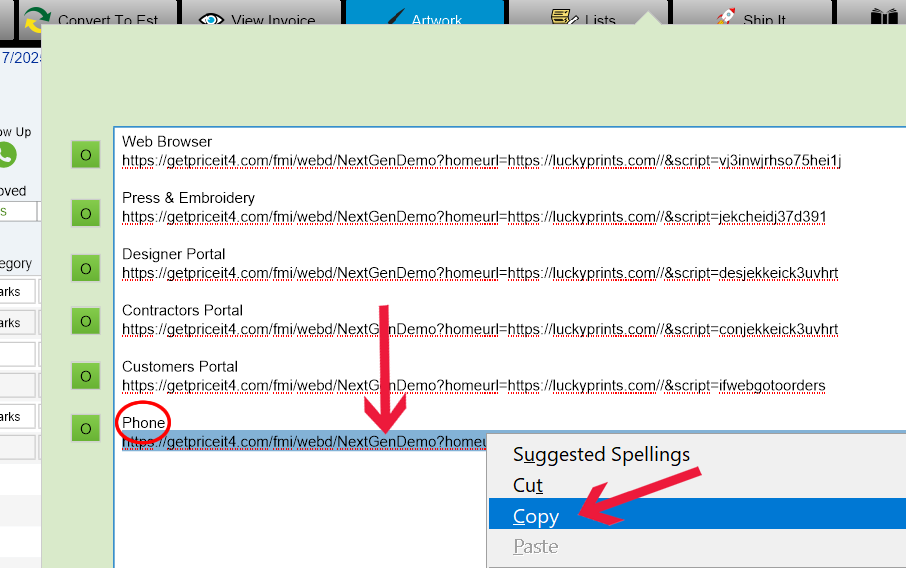
PriceIt setup screen showing how to copy the Phone web URL for mobile app configuration

Now open your email on your desktop or laptop and compose a new email addressed to an email you can access from your phone.
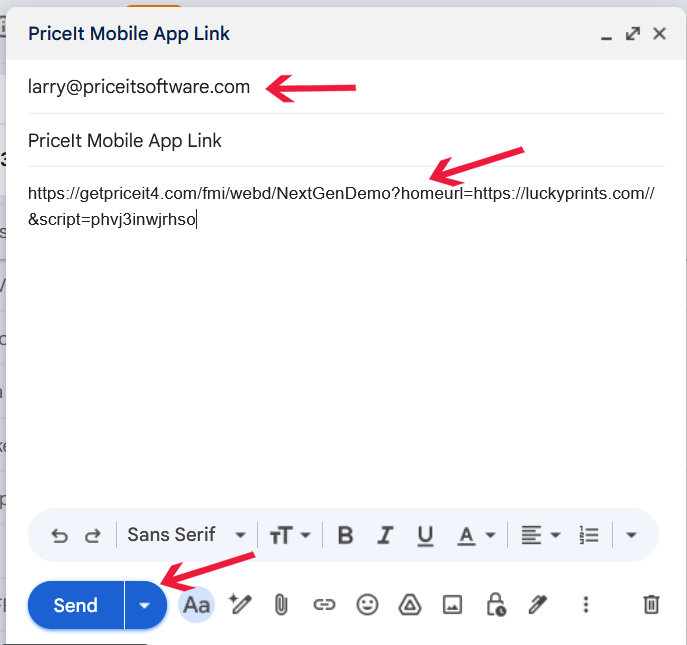
Email setup example showing how to send the PriceIt Phone App mobile access URL to your phone by email

Follow the instructions for your phone Operating System Below

Open the email sent to your Phone and click the link.

Enter the Username and Password

you use to log into PriceIt

then click OK

After Logging in click the 3 dots in the upper right hand corner

Now click Add to Home Screen

Click Add

Click Add

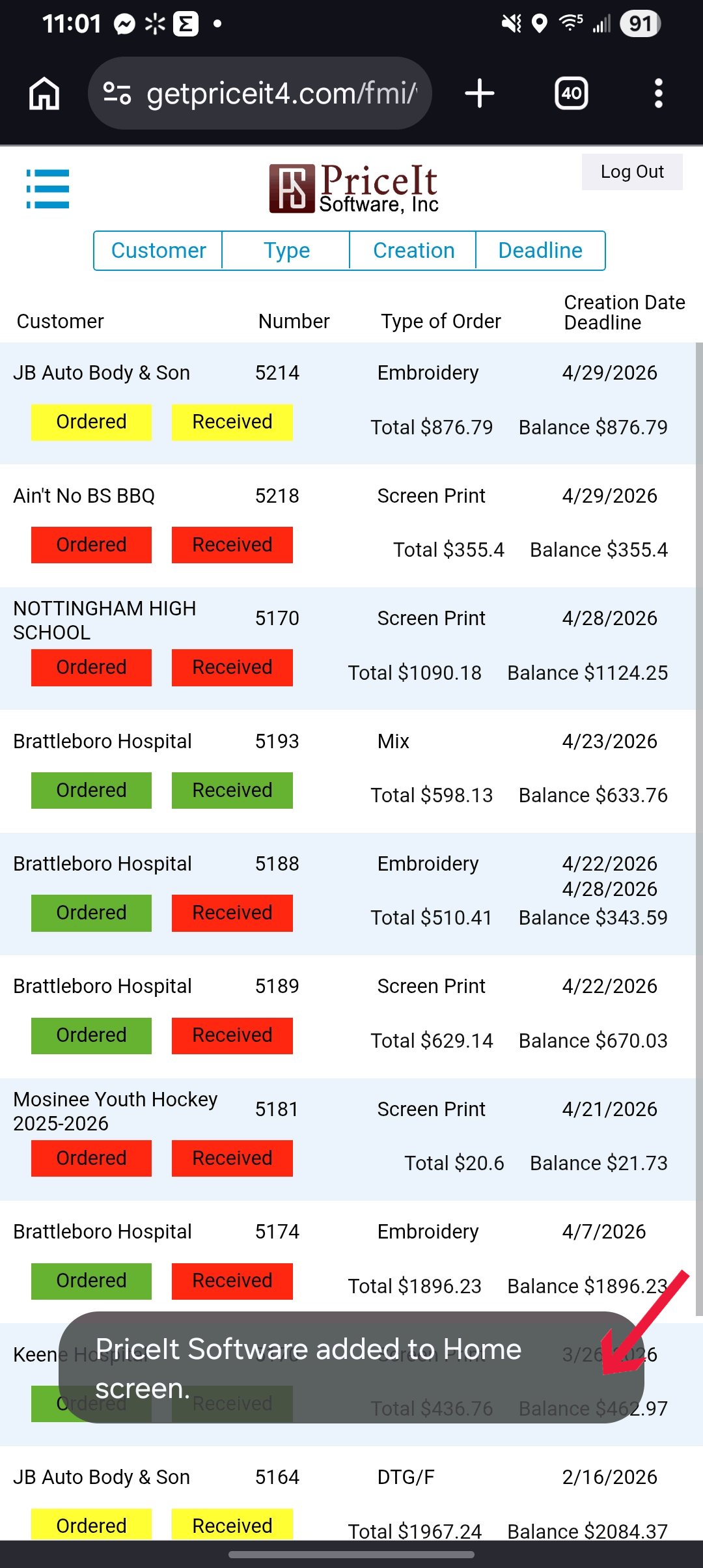
You should see this for a moment.

PriceIt has now been added to your Homescreen!

alt=""

Highlight the PHONE url. Then

[Right Click] and select COPY

Paste the URL you copied from PriceIt into the email and send it.

iPhone and iOS app setup instructions for the PriceIt Phone App
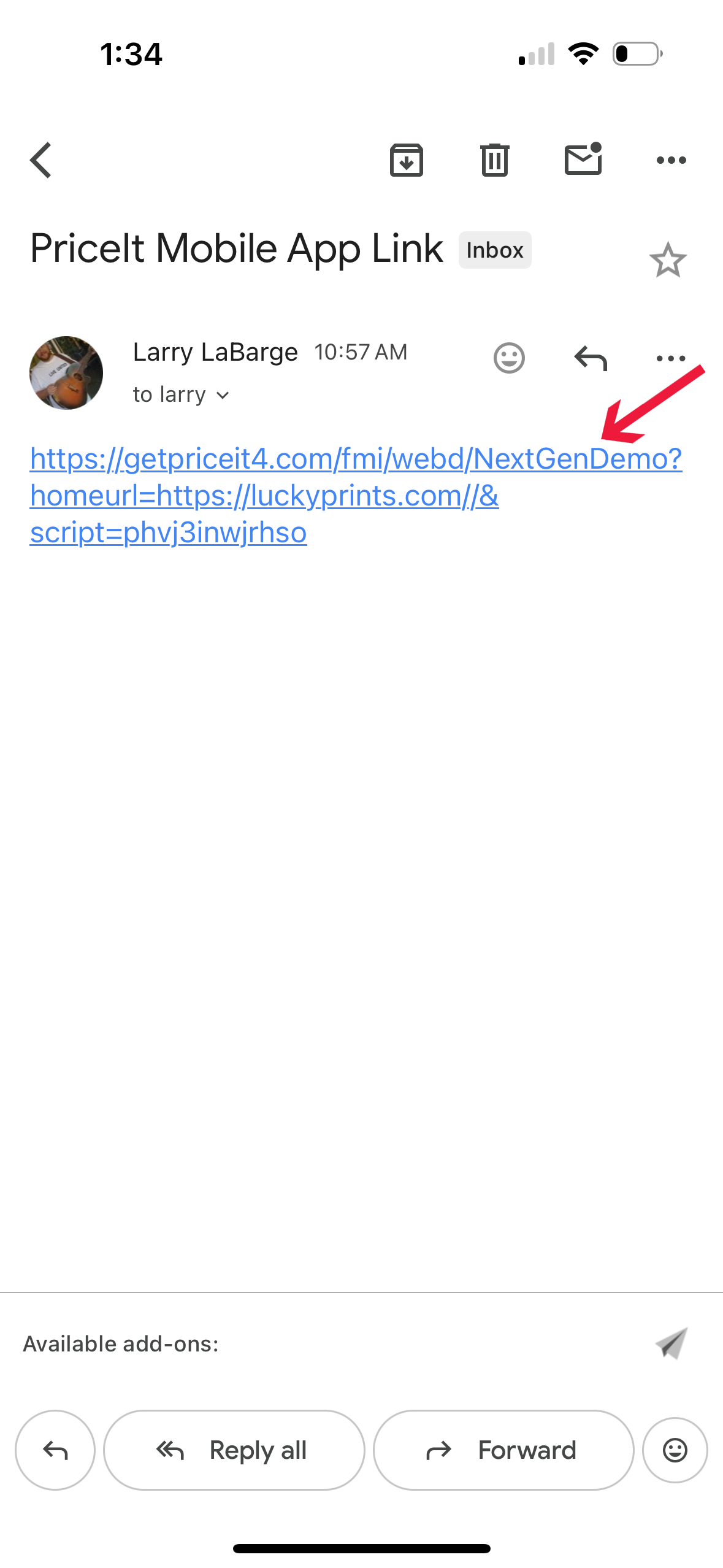
Apple iPhone OS email screen showing how to open the PriceIt Phone App access link from an email message
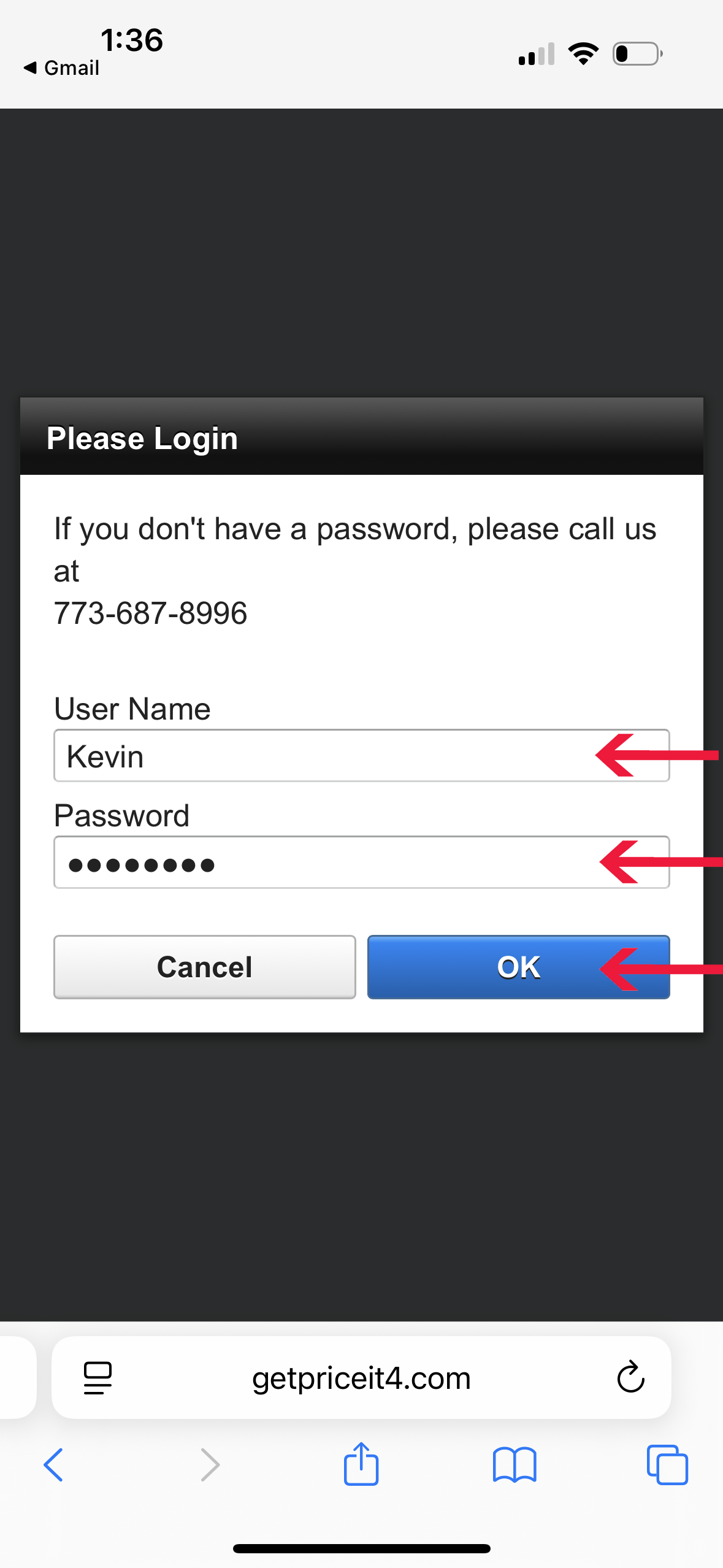
Login screen on a mobile device with fields for username and password, with a Phone number and options to cancel or submit.
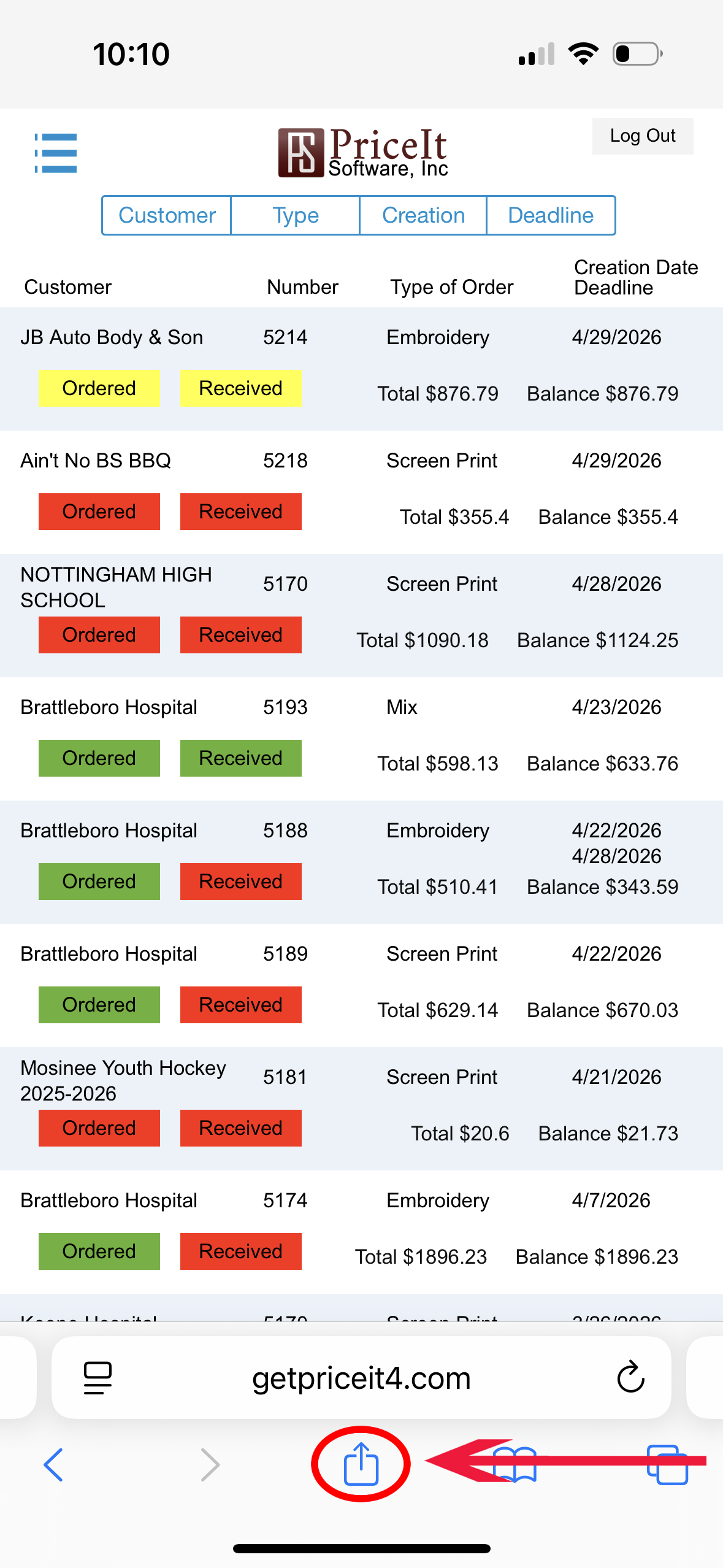
Apple iPhone app PriceIt Software showing a list of customer screen print, embroidery, and DTG / DTF orders with statuses in color-coded labels
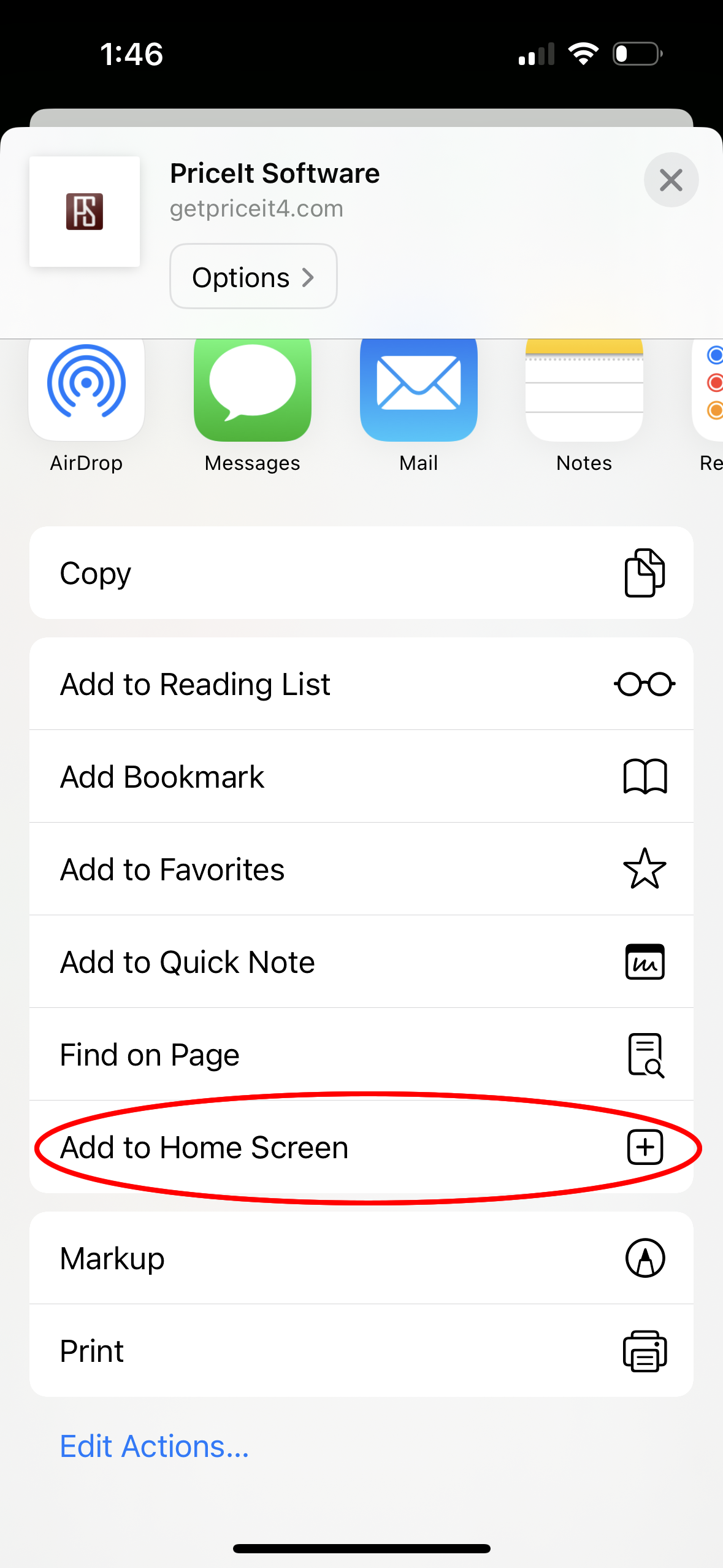
Screenshot of an iPhone sharing menu showing options to add a webpage to Home Screen, with the 'Add to Home Screen' button circled in red.
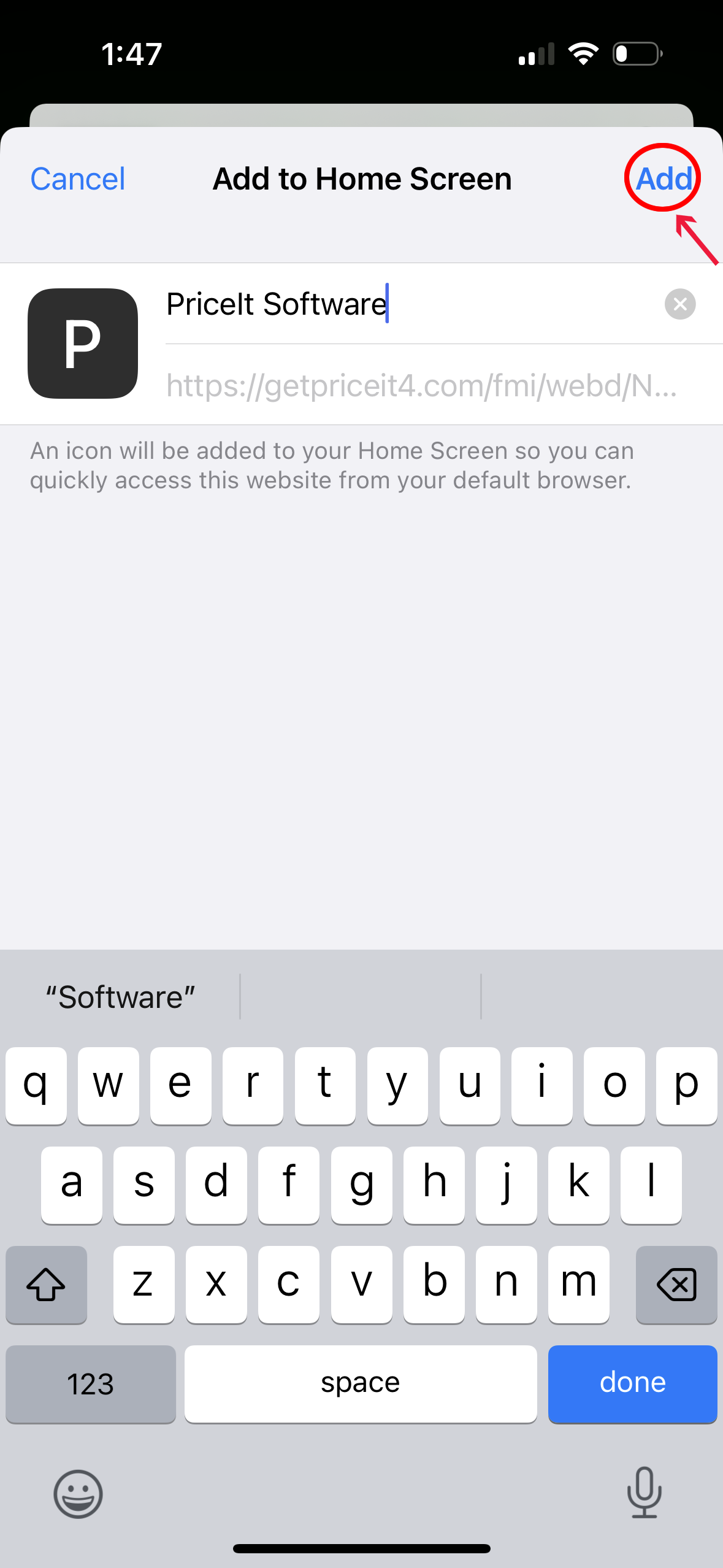
Apple iPhone phone app PriceIt Software showing how to add the app to the homescreen
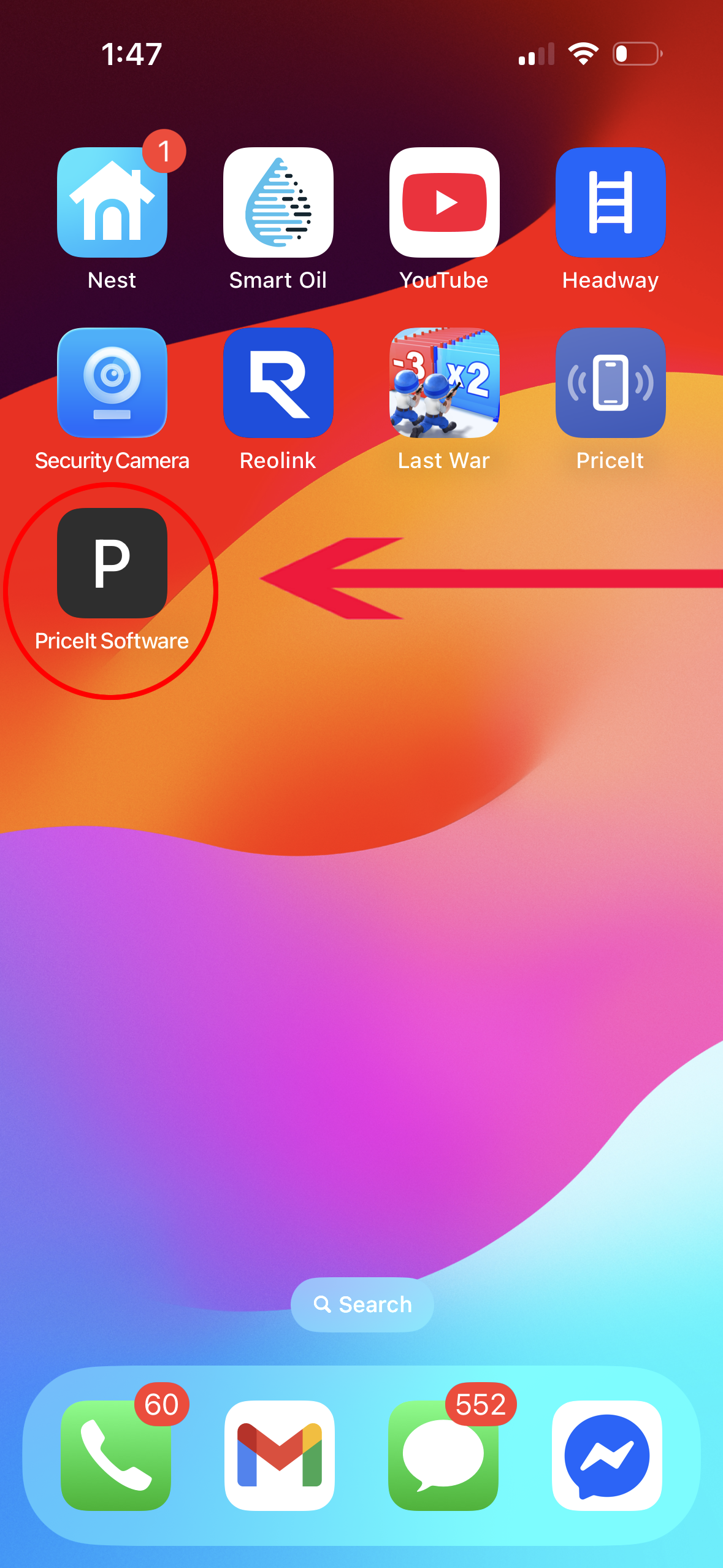
Apple iPhone screen showing PriceIt Software phone app added to homescreen

Open the email sent to your Phone and click the link.

Enter the Username and Password

you use to log into PriceIt

then click OK

After Logging in click the box with arrow up (share) icon.

Now click Add to Home Screen

Click Add

PriceIt has now been added to your Homescreen!