How to set Product Defaults and Pricing

First, click the [Shortcuts] Button
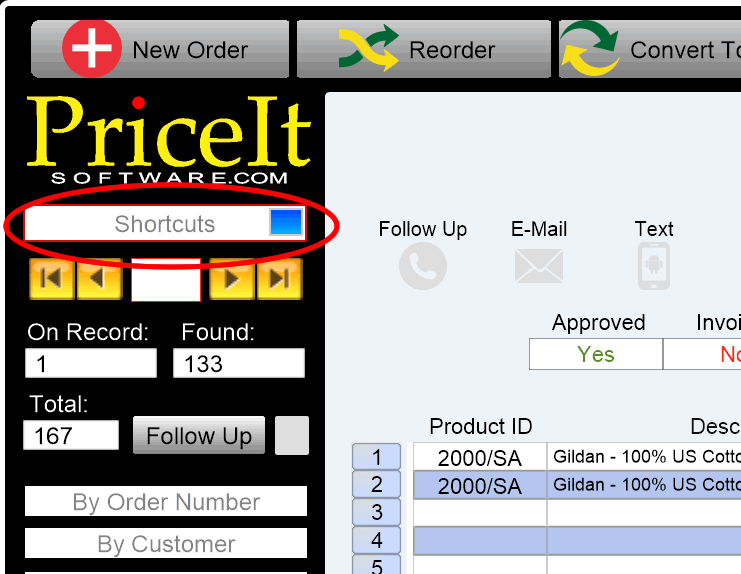
Screenshot of a software interface named PriceIt, showing buttons for new order, reorder, and convert to, with a section for shortcuts, record counts, and product information.
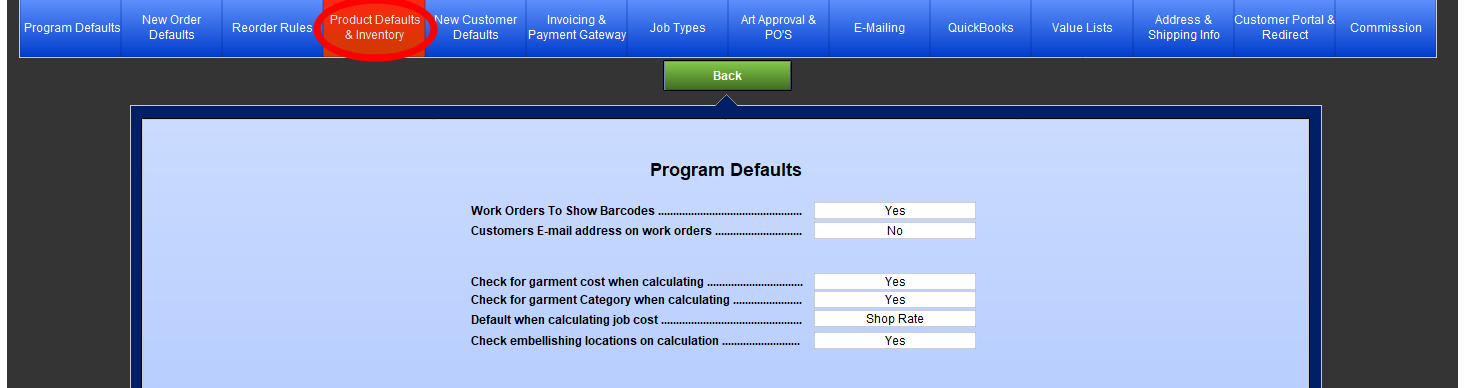
Screenshot of a software interface with a blue menu bar at the top containing navigation options such as Program Defaults, New Order Defaults, Reorder Rules, Product Defaults & Inventory, and others. The 'Product Defaults & Inventory' option is highlighted in red. Below the menu, there is a green button labeled 'Back.' The main section displays a 'Program Defaults' page with various settings and options related to work orders, customer email preferences, garment cost checks, category checks, default job costs, and embellishment location checks.

Next, click the [Product Defaults & Inventory] Button

Next, Put an “X” in the blocks next to the Vendors you DO NOT want to appear in your Garment Purchasing Report. 

Screenshot of a software interface for creating garment purchasing reports, with instructions and settings for vendor selection, default product markup, and inventory names.

Next, Under New Product Defaults, populate the Markup and Ship rates. (See Above)